
Dungeon Picnic Controls
Gamepad prompts from the current build, plus keyboard-only and mouse-wheel notes.
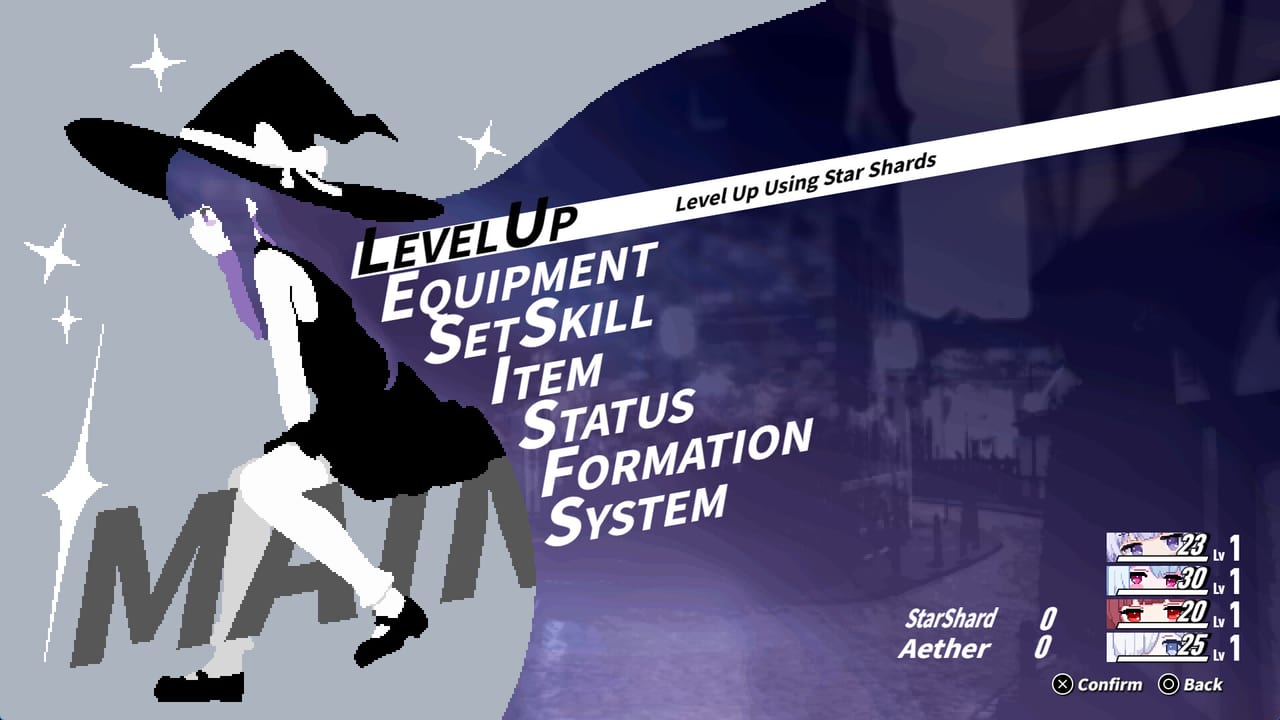
Dungeon Picnic is built for a gamepad first, with a keyboard-only option, partial controller support, and mouse-wheel support in lists. The prompts in the current limited demo use PlayStation-style labels on several screens: X, Circle, Square, Triangle, L1, R1, and OPTIONS. This page maps those prompts to the menus you actually live in: Level Up, Equipment, Set Skill, Item, Status, Formation, and System. The product version is still to be announced, so treat the map as demo-accurate rather than as a final manual.
If you have not installed, confirm the system requirements and Getting Started. If a button mash just AutoEquipped a speed plan into junk, stay here. Combat timing after you can actually confirm a skill is in the ReAct combat guide.
Recommended input, and what partial support means
A gamepad is recommended. Analog movement is not the point; the picnic is menus, event picks, and command combat. Face buttons, bumpers, and OPTIONS are the language of the build. Keyboard-only play is supported if you do not own a pad, but Formation, Equipment, and Level Up all go faster when confirm and back sit on muscle memory. Partial controller support means some pads will miss a prompt or a stick assignment. If a controller does not show the labels below, fall back to keyboard rather than assuming a hidden bind.
Mouse wheel is supported. Use it to scroll skill lists, equipment lists, and the random Level Up options that show costs such as SHARD 03. Do not rely on the wheel to confirm a node; confirm is still a button. The limited demo that started 6 September 2026 is the build these prompts were copied from. Steam Next Fest from 19 October 2026 may tweak UI copy, but the face-button jobs below are the ones screenshots already teach.
Steam lists English, Japanese, and Simplified Chinese in the client. Prompt words such as Confirm, Toggle Details, and AutoEquip may appear in those languages depending on your Steam overlay. This page uses the English labels.
Face buttons: X, Circle, Square, Triangle
X is Confirm, Get, Level Up, and Select Slot. That is a lot of jobs on one button, which is why misclicks are expensive. Confirm is how you enter EVENT ENEMY ????? on the mapless route. Get is how you pick up what a node paid you. Level Up is how you open the Star Shard screen. Select Slot is how you plant a skill on Set Skill or a body on Formation. If you hesitate on a Battle + Rewards tag, take your thumb off X and read MN first. The exploration guide exists for that pause.
Circle is Back and Toggle Details. Back is the safety. Toggle Details is how you inspect a skill’s MN cost, cooldown, and targeting without committing. Square is also Toggle Details on screens that offer a second inspect path. Use inspect before you buy Starting Mana at cost 3 or a character option at cost 1. Unlimited Meteor’s card is a wall of text (2 MN, cooldown 12, random foes, variable, 100% damage, hits equal to ready skills except cooldown 0, then set all skills on cooldown). That card is why Toggle Details exists.
Triangle is AutoEquip. It is a gift and a trap. On a first demo run, AutoEquip can put something wearable on Astrologia, Apothecary, Kannagi, and Aries Knight so you can fight. On a later run, AutoEquip can flatten a speed plan, overwrite a piece you meant to keep, or ignore the lesson of artifacts such as First Star Fragment (SPD +25%, wearer can act first when battle begins) that appear on roster equipment screens for Samurai. Tap Triangle only when you intend to reset gear. Do not park your thumb there during a wipe-recovery mash.
Bumpers, OPTIONS, and the menu list
L1 is Item and Switch Characters. R1 is Switch Characters. Together they are how you move between the four demo heroines without backing out to a root menu every time. Item on L1 is the consumable path; use it on the route before a node, not on the wipe screen. Switch Characters is also how you compare Status rows: HP, ATK, DEF, HEAL, SPD, Hit, Crit, Crit DMG. Harvester’s shown level 1 row (HP 30, ATK 10, DEF 0, HEAL 8, SPD 98) is roster literacy; the demo still switches among the four playable names.
OPTIONS opens Status Effects, Unequip All, and Menu. Status Effects is the screen to read before you decide a Break is done, because a leftover effect can explain an enemy ReAct you blamed on Formation. Unequip All is the clean opposite of Triangle AutoEquip: it strips the picnic so you can rebuild by hand. Menu is the root that holds Level Up, Equipment, Set Skill, Item, Status, Formation, and System. Learn OPTIONS as a pause button, not as a panic button that Unequip Alls in the middle of a node.
System is settings and exit habits. Status is inspection. Formation is order. Set Skill is the ready-versus-cooldown board that Meteor cares about. Equipment is artifacts and weapons, including the sailor-uniform katana look on Samurai’s screen and Kannagi’s purification wooden sword identity. None of those menus need a second stick; they need Confirm, Back, and the discipline not to AutoEquip by reflex.
Keyboard-only play, mouse wheel, and demo reporting
Keyboard-only is viable for a single-player command RPG. Bind confirm and back to keys you will not fat-finger while reading a 00/10 event. Use the mouse wheel to scan Level Up offers without clicking them. Partial controller users should test L1/R1 character switching before a serious run; if bumpers do not switch Kannagi to Aries Knight, go keyboard for that picnic and file a note.
Bug reports for bad prompts belong on Steam discussions, as the demo guide explains. Say whether you were on gamepad, keyboard-only, or a partial pad. Streaming and monetization of demo play are allowed; a visible prompt map on stream helps viewers more than a silent mash. Saves still do not transfer to the product version.
Party and combat pages assume you can actually hit Confirm on the skill you meant. Shared MN, Break, and ReAct are wasted if Triangle AutoEquip just swapped your speed piece, or if OPTIONS Unequip All stripped the kit before a Battle + Rewards node. Practice the face buttons in System and Equipment before you spend Star Shards. The party-building guide is the spend; this page is the hands.
Official storefront and social links are on the links hub. Wishlist tracking is on wishlist. Input will not change the fact that Dungeon Picnic is single-player only, or that the upcoming full game is still to be announced. What input changes is whether Unlimited Meteor was a decision or a mis-confirm.
Build a tiny drill before each demo session: X to open Level Up and back out with Circle without buying, Square or Circle to Toggle Details on one comet, L1/R1 to walk the four heroines, OPTIONS to glance at Status Effects, and Triangle only at the end if you truly want AutoEquip. Keyboard-only players should run the same drill with their confirm and back keys, using the mouse wheel to travel the list. That five-button loop is the picnic’s real tutorial. Combat and exploration become readable once your thumbs stop spending shards and stripping gear by accident.
Frequently Asked Questions
Quick answers for demo runs, ReAct combat, and party building.
Is a gamepad required?
No, but it is recommended. Keyboard-only play is supported, controller support is partial, and the mouse wheel works in lists. Confirm hardware on system requirements before you install.
What does the X button do?
X is Confirm, Get, Level Up, and Select Slot. That includes entering events and spending Star Shards. Pause before confirming enemy nodes; the exploration guide explains when to skip Battle + Rewards.
How do I inspect a skill without buying it?
Circle and Square both Toggle Details on relevant screens. Circle is also Back. Read MN, cooldown, and targeting before you commit, especially on Unlimited Meteor. Card math is in the combat guide.
What should I know about AutoEquip and Unequip All?
Triangle is AutoEquip. OPTIONS can Unequip All, show Status Effects, or open Menu. AutoEquip is fine on a first kit and dangerous once you have a speed plan. Gear theory sits in party building.
Where do I report a prompt that does not work?
Steam discussions for the limited demo. Name your input method and the menu you were in. Demo policy, streaming notes, and no save transfer are collected in the demo guide.